 GetAssetPack
Comment Bubble Assist Hotkeys
- Price
- Free
- Type
- Other
- Engine
- Unreal
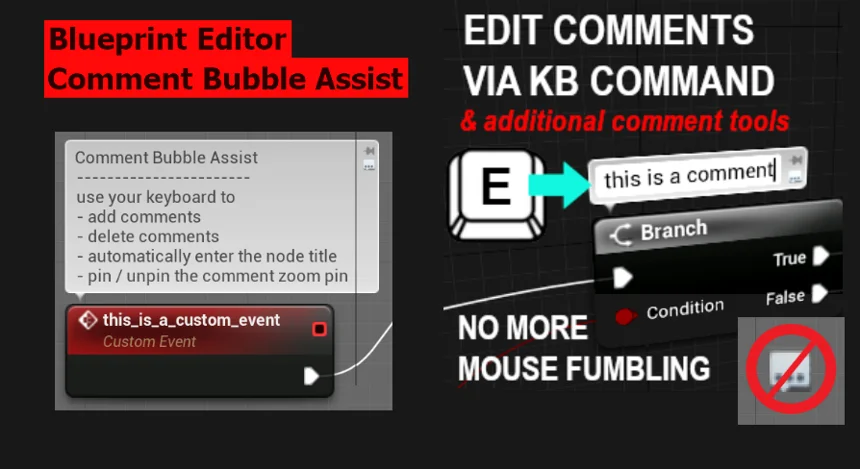
An Unreal Editor plugin with keyboard shortcuts for editing, hiding, pinning, and clearing Blueprint comment bubbles.
Unreal Editor Plugin: Comment Bubble Assist commenting without getting mouse arm RSI !This plugin allows you to use keyboard commands to edit Blueprint comment bubbles, fill them with the node's title, pin / unpin the zoom lock, or remove the comment.No more fumbling with the mouse, trying to hit those tiny buttons.video: https://youtu.be/ngc-MZldvMw (shows v.1.1)commands available:all shortcut keys may be changed in the UE4 Editor settingsE:Edit the comment textSimply select the command node, hit the E key, and start editing.H:Hide / unhide the comment texttoggle: If at least one comment of the selected nodes is visible, hide them.If none of the selected is visible, unhide non-empty comments again.P:Pin or unpin the bubble zoomTo control whether the bubble should zoom with the graph, or stay at a readable 1:1 size.toggle: If the slected / all of the selected nodes are pinned, unpin them.classic 'U' command for unpin still works.ALT-C:Clear the commentDelete the comment text and hide the comment bubble.Does not delete text from hidden comments.SHIFT-E:Pin & Edit the comment textlike Edit, but also pins the zoom size. Useful to edit when heavily zoomed outALT-E / CTRL-ALT-E:Fill the comment bubble with the node title and pin the size.Useful for event nodes to still find them while zoomed out.ALT-E only fills nodes of type 'event', but doesn't touch 'normal' nodes, even if selected.Useful to only fill several event nodes, without having to avoid the 'normal' nodes when selecting.CTRL-ALT-E fills all types of nodes.Both commands don't touch nodes which already contain a comment.UNDO:Use the standard CTRL-Z undo commandTip: use together with fpwong's BlueprintAssist to quickly move around between the nodesusing the ctrl-cursor keys, making retroactive commenting easy.
Available on
- Fab (Epic) Free