 GetAssetPack
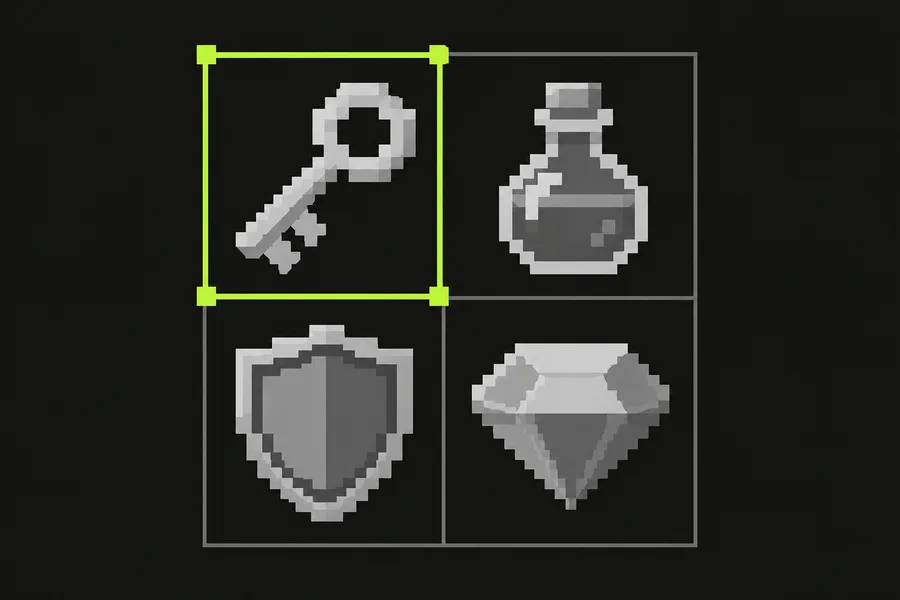
Roblox UI atlas builder.
Drop an existing atlas to pick an icon, or drop a folder of PNG icons to build an inventory sheet for Studio.
PNG atlas · PNG icons · ZIP
Runs locally in your browser
The offset is the left and top edge of the selection in atlas pixels. The size is its width and height. Click a sprite, then Copy rectangle, to get both assignments for your ImageLabel or ImageButton.
Drag a box or type its pixel bounds. Roblox displays an axis-aligned rectangle, so a rotated or polygon-packed sprite may need to be repacked from its original PNG.
Studio reference · ImageLabel properties