 GetAssetPack
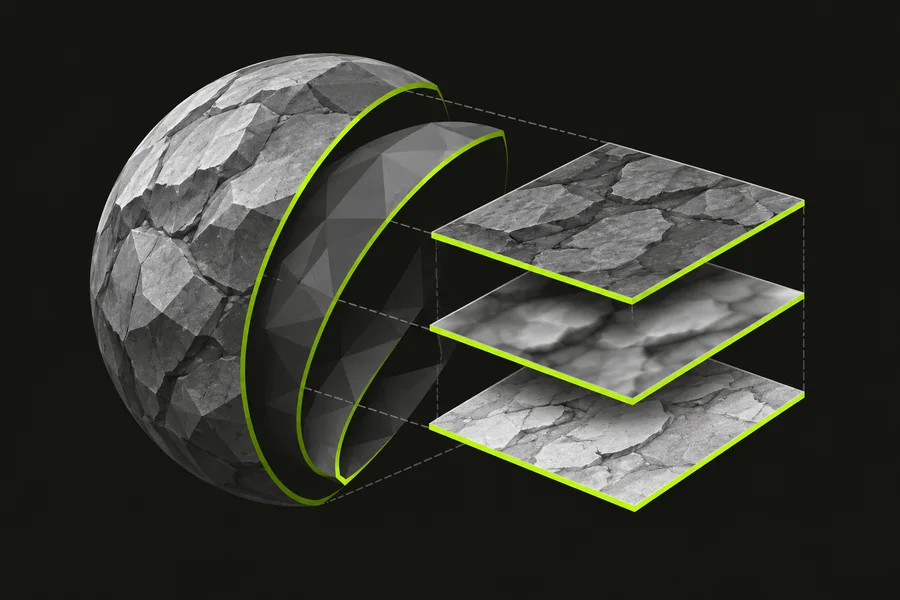
PBR channel splitter.
Drop a packed material texture to extract its roughness, metalness and ambient occlusion maps.
PNG, TGA, PSD, WebP or JPG · ORM, RMA or MRA channels
Runs locally in your browser
Red stores ambient occlusion, green stores roughness and blue stores metalness. RMA and MRA use a different order. Check the texture author’s convention before exporting.
Add a SurfaceAppearance to the MeshPart. Upload the two grayscale images and assign them to RoughnessMap and MetalnessMap. Keep AO separately for workflows that accept an occlusion map.
Studio reference · SurfaceAppearance properties