GetAssetPack

CopperCube PSX Shader

CopperCube PSX Shader
Price
Free
Type
Shaders & VFX
Creator
SamGrady
Style
PSX
Animation
Animated

A CopperCube shader adds PSX-style dithering, texture warping, jitter, dynamic lighting, and fog to 3D scenes for retro games.

Try visuals of the original PlayStation era with this CopperCube shader.

Available on

Search by image

Upload a reference to find previews with similar colors, contrast, and detail.

CopperCube PSX Shader

CopperCube PSX Shader1 / 4
SamGrady · itch.ioFree
Shaders & VFX
License not indexed
  • i Check the terms on the original listing.
Show full terms

Try visuals of the original PlayStation era with this CopperCube shader.

A CopperCube shader adds PSX-style dithering, texture warping, jitter, dynamic lighting, and fog to 3D scenes for retro games.

View original listing

Description

CopperCube PSX Shader Extension

Bring Retro PlayStation 1 Visual Effects to Your CopperCube Projects

Enhance your CopperCube scenes with this PSX-inspired shader, bringing the iconic look and feel of early 3D consoles to life. Designed to replicate the visual effects of PlayStation 1 games, this shader adds unique retro-style effects such as texture warping, dithering, jitter, dynamic lighting, and fog.

Key Features:

Show full description...
  • PSX-Inspired Visuals: Achieve classic PlayStation 1 aesthetics with effects like dithering, texture warping, and jitter, perfect for creating retro-style games or adding vintage visual flair to your CopperCube project.
  • Dynamic Lighting: Supports up to four light sources in the scene, dynamically affecting objects with lighting that is automatically sourced from the scene’s light nodes (configured in the CopperCube editor).
  • Fog Effects: Automatically applies fog based on the scene's settings, offering a more atmospheric environment with depth-based fog blending.
  • Color Dithering: Replicates the limited color palette of early 3D consoles, with adjustable dithering intensity to control the visual retro effect.
  • Texture Warping & Jitter: Simulates the imprecision of early 3D hardware, including texture distortion and random vertex shifts for an authentic PSX experience.

How It Works:

  • PSX Shader (Behavior): Set up the shader with parameters like dithering intensity, texture warp, jitter, and dynamic lighting. Once configured, this behavior prepares the shader for use in your scene.
  • PSX Shader (Action): Apply the shader to scene nodes, such as meshes, billboards, or animated meshes. The action ensures that the shader is applied to all materials in valid node types, transforming their visuals with retro effects.

Simple Setup:

  • Add PSX Shader (Behavior) to your scene to initialize the shader settings.
  • Use PSX Shader (Action) to apply the shader to the selected scene nodes (mesh, billboard, or animated mesh).

Requirements:

For proper functionality, PSX Shader (Behavior) must be executed before PSX Shader (Action) to ensure the shader is initialized correctly.

Lighting & Fog:

  • Lighting: The shader supports dynamic lighting based on the scene’s light nodes, with up to four light sources automatically applied. Lighting parameters are sourced directly from the editor’s light nodes.
  • Fog: Fog effects are automatically configured from the scene's settings, allowing for depth-based fog that adjusts as per the scene’s root node properties.

Perfect For:

  • Developers creating retro-style or nostalgic 3D games.
  • Those who want to replicate the aesthetic of early PlayStation 1 graphics in their CopperCube projects.
  • Adding vintage effects to 3D environments with minimal setup.

Compatibility:

  • Works with CopperCube version 6.0 and above.
  • Supports both DirectX (HLSL) and OpenGL (GLSL), ensuring broad compatibility.

Example of Using the Shader:

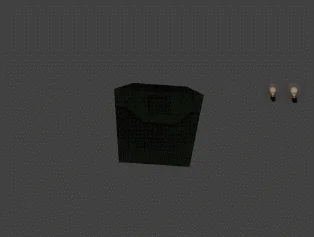
  • Scene Setup: Create a scene with a standard box, cubeMesh1, and four light sources.
  • Add Shader Behavior: Attach the PSX Shader behavior to the root node of the scene. Configure all the values as needed, add lighting nodes, and enable the UseLight variable for lighting functionality.
  • Assign Shader to Node: Use the PSX Shader action to assign the shader to a specific node (e.g., cubeMesh1). Trigger the assignment in the "Before first drawing do something" event.

Final Output:

Tags

ambieracoppercubegamedevPSX (PlayStation)Shaders

Downloads