GetAssetPack

TimpsShot

TimpsShot
Price
Free
Type
Icons
Creator
Timps
Formats
PNG
Dimensions
2D
Genre
RPG, Puzzle
Engine
Unity

A Unity scene and script for generating transparent PNG icons from 3D models, with adjustable framing and batch rendering for RPGs, puzzle games, and other projects.

An icon creator for Unity3d - V3

Available on

Search by image

Upload a reference to find previews with similar colors, contrast, and detail.

TimpsShot

TimpsShot1 / 3
Timps · itch.ioFree
2D
Icons
License not indexed
  • i Check the terms on the original listing.
Show full terms
FormatPNG

An icon creator for Unity3d - V3

A Unity scene and script for generating transparent PNG icons from 3D models, with adjustable framing and batch rendering for RPGs, puzzle games, and other projects.

View original listing

Description

TimpsShot

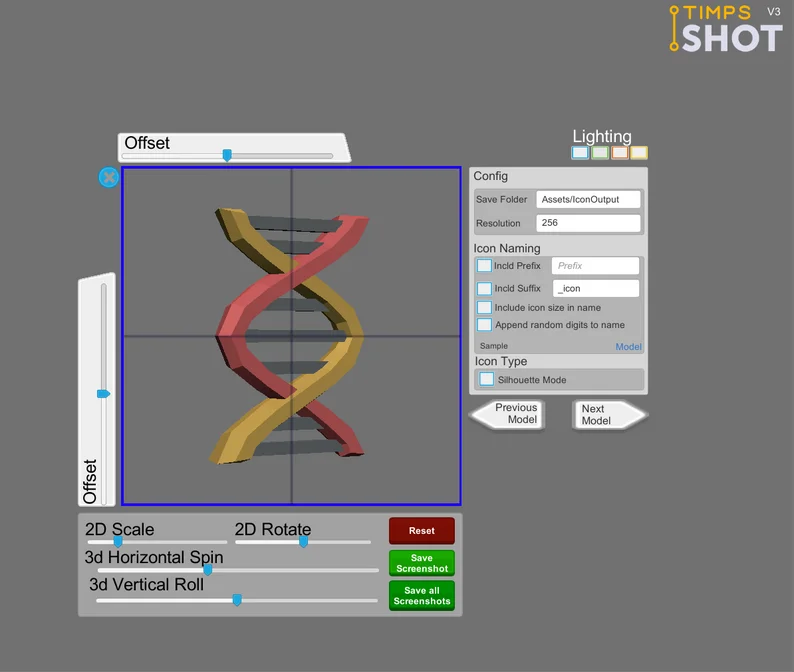
An icon creation tool for Unity3d.

It's a scene and a script you can use standalone in a new project or add to your existing project to generate transparent PNG icons in any size you need. It's original purpose was to help turn 3d models into icons for things like RPGs, puzzle games etc

TimpsShot allows you to quickly scale, rotate (on all 3 axes), move and position an object and then save an icon.

Show full description...

You can apply the same config to hundreds of objects at once and render them all.

It supports :

  • Mesh Renderers
  • Skinned Mesh Renderers
  • Filename prefix (configurable on demand)
  • Filename Suffix (configurable on demand)
  • Including icon size in the file name
  • Appending random digits to avoid file name collisions
  • Adjustable folder for output
  • NEW Silhouette Mode to generate a clean white silhouette of your icon instead

Usage

  • Download and open up the TimpsShot unity package. You can do this in an existing or new project.
  • Open up the scene TimpsShotMain
  • Drag the objects you want to turn into icons onto the ObjectHolder. They need to be children of this object. See screenshot below
  • Enter Play mode
  • In the TimpsShot UI you can configure the save folder, icon size, as well as prefix and suffix.
  • NB - The save folder is relative to your project root, above the assets folder. To avoid the needless creation of .meta files
  • In Play mode you can use the on screen sliders to adjust the position and rotation of your object.
  • The blue frame indicates the area that will be saved
  • The crosshair to mark the frame centre can be switched on and off using the X icon on the left.
  • Clicking "Save Screenshot" will create a new PNG of the contents of the blue square as a transparent PNG with the appropriate filename.
  • Clicking "Save all screenshots" will apply the current scale and rotation settings to ALL objects under the objectholder and save them as transparent PNGs. It will start from the first object, regardless of which you are using.

The starting heirarchy

Objects set as children of the Object Holder

When started the script automatically finds the centre of the object and parents it to an empty gameObject on that point. This ensures all objects rotate relative to the same point.

Save All runs as a coroutine. You'll see it quickly cycling through the models one by one.

If upgrading from a previous version please delete the TimpsShot folder under GameDevBits before importing.

NB This is a scene file and scripts for use in Unity3d and not a standalone application. It's been developed to work in Unity 2018.4 LTS and upwards.

This requires Unity3d to run.

Tags

Iconsrpg-icontoolsUnityunity3d

Downloads

Name your own price.