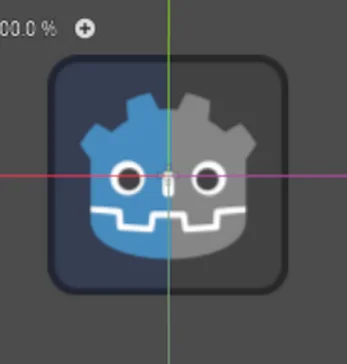
In this tutorial, you'll learn how to write a shader in Godot Engine that converts a sprite's colors to grayscale. We'll explore how grayscale works and how to calculate it using a shader.
In RGB color, black is represented as (0, 0, 0), white as (1, 1, 1), and grayscale values are equal values across all three channels.
Show full description...
(0.2, 0.2, 0.2): dark gray
(0.8, 0.8, 0.8): light gray
So what will do is that will take the pixel color data from sprite and divide its RGB values with 3 and assign that value as the new RGB color values. The code we write will run on the fragment shader which will run for every pixel on the sprite.
1. Setting Up the Scene
Start by adding a Sprite2D node to your scene.
Assign a texture to the sprite. For this tutorial, we'll use Godot icon. position it as needed on your canvas.
2. Creating the Shader
To Create a new ShaderMaterial for the Sprite2D, first go into material and add a new shader material .
Then right click again on that ShaderMateria and Add a new shader. Save the shader in your project and make sure it is a canvas item shader
Open the shader editor, remove the vertex() function keep the `fragment()` function. Also delete all other commented out code
4. Implementing the Grayscale Logic
To convert each pixel to grayscale, calculate the average of its red, green, and blue components. Then assign this average value to all three RGB channels.
Inside the fragment function make a vector4 (original_color) and assign the texture, uv data into it. You can do this by, vec4 original_color = texture(TEXTURE, UV);
Make a float (grayscale) and assign the average of RBG channel to it. You can do this by, float grayscale = (original_color.r + original_color.g + original_color.b) / 3.0;
Change the color of texture by assigning the average RGB values we calculate and set the alpha value to the default alpha. You can do this by, COLOR = vec4(vec3(grayscale), original_color.a);
Here's the shader code
shader_type canvas_item;
void fragment()
{
vec4 original_color = texture(TEXTURE, UV);
float grayscale = (original_color.r +original_color.g + original_color.b) / 3.0;
COLOR = vec4(vec3(grayscale), original_color.a);
}
 GetAssetPack